
A significant shift in television viewing is underway as consumers replace traditional cable with IPTV. Internet Protocol Television (IPTV) allows users to stream live channels, shows, and movies directly over the internet.
IPTV eliminates the need for fixed schedules or bulky hardware, allowing you to stream content anywhere with an internet connection. The setup process for IPTV can be confusing, as different devices require unique configurations that often challenge new users. This guide is designed to help even first-time users successfully complete the setup process.
What You Need Before Setting Up IPTV
With over 130 million users, according to Statista, IPTV is a rapidly growing service. Here’s what you need to begin your journey:
Find a Reliable IPTV Subscription
You will need an IPTV account to watch the live channels and other content via streaming. Some services, like U7BUY, offer reliable and rapid IPTV accounts at competitive rates.
When selecting a service, it is important to research different providers to find one that meets your needs for reliability and speed.
A Reliable Internet Connection
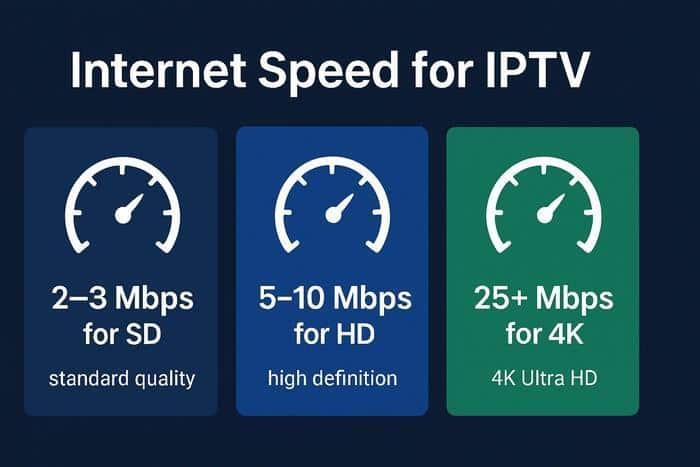
To ensure a smooth streaming experience, a reliable internet connection is necessary. The minimum required speed varies by streaming quality:
- Standard Definition (SD): 2-3 Mbps
- Full High Definition (FHD): 5-10 Mbps
- 4K Ultra High Definition (UHD): 25 Mbps or more
Choose an IPTV Player App
A dedicated player app is required to watch IPTV content. The popular options are VLC, TiviMate, or IPTV Smarters. IPTV providers typically offer an M3U link or a login code for use within the player app.
Start with the free version of these apps for a smoother experience. For a completely free and open-source alternative, VLC is an excellent option.

How to Install IPTV on Your Smart TV
According to research, over 40% of IPTV users prefer watching on their Smart TVs, valuing the high-quality, big-screen experience.
Follow these steps to use IPTV on a Smart TV:
Step 1: Install an IPTV Player App
Start by downloading an IPTV player from the TV’s app store. Some popular options include:
- Smart IPTV
- TiviMate
- IPTV Smarters
- VLC
You can use most of these apps for free and can upgrade later if you want extra features.
Step 2: Enter Your IPTV Subscription Details
Now, open the IPTV player and enter the details. It can be a portal URL, M3U link, or Xtream code.
Step 3: Load Your IPTV Channel List
After entering the details in the player app, save them. Next, wait, as the app will pull up content from different categories.
If the content does not appear immediately, wait one to two minutes before refreshing the app.
Step 4: Start Streaming Your Content
You can now watch thousands of channels, movies, and shows offered by the IPTV provider.

How To Set Up IPTV on a Smartphone (iOS & Android)
While a Smart TV offers a full-screen experience, it lacks the portability of a mobile device. To enjoy IPTV on the go, setting it up on a smartphone (iOS & Android) is the ideal solution.
According to statistics, more than one-third of IPTV users watch content on mobile devices. So, if you want the convenience of streaming anywhere via IPTV, follow these steps:
Step 1: Download the IPTV App
On Android devices, open the Play Store and install one of these apps:
- GSE Smart IPTV
- TiviMate
- IPTV Smarters
You can also install TiviMate & other apps on an iOS device via the App Store.
Step 2: Enter Your Subscription Details
Open the installed app on your smartphone and enter the M3U playlist link/Xtream codes from the IPTV provider.
Once you have entered the list, the mobile app will automatically unlock the channel list. Depending on your IPTV provider, you may also get access to movies and other on-demand content besides the live TV channels.
Step 3 (Optional): Cast to a TV
You can use AirPlay or Chromecast to project from your smartphone to a TV to enjoy your IPTV content on a larger screen.

How to Install IPTV on an Amazon Fire TV Stick
This section details the IPTV setup process for an Amazon Fire TV Stick.
Step 1: Install the Downloader App
Because some IPTV apps are not available on the Amazon App Store, the first step is to install the Downloader app to sideload them.
Step 2: Sideload the IPTV Player App
Now, use the Downloader app to sideload the IPTV apps, such as TiviMate or IPTV Smarters.
Step 3: Log In to Your IPTV Service
Open the installed app and type in the login info or the playlist link from the provider. After entering a valid playlist link, the app will pull up the channels list.
Step 4: Configure Your Player Settings
Most IPTV apps allow you to configure settings like video quality, buffer size, and EPG, which helps create a more traditional cable-like experience.
Finalizing Your IPTV Streaming Experience
You can use a Smart TV for a cinematic experience, a smartphone for on-the-go viewing, or a Fire TV Stick for its versatility. Regardless of your choice, the setup steps are simple and accessible even for beginners. Following this guide ensures you can quickly configure your preferred device, load your channel list, and start enjoying a modern, flexible television experience.
Frequently Asked Questions About IPTV Setup
Do I Need a Special TV to Use IPTV?
No, you do not need a special television. Most modern Smart TVs can download an IPTV player app directly. For older, non-smart TVs, an Amazon Fire TV Stick or a similar streaming device is all you need to get started.
What Do I Do if My Channels Are Not Loading?
If your channels fail to load after entering your details, the first step is to use the “Refresh” or “Reload” function within your IPTV player app. Finally, verify that the M3U link or Xtream codes you entered are correct and that you have a stable internet connection.
Can I Use One IPTV Subscription on Multiple Devices?
This depends entirely on your IPTV provider. Some subscriptions are limited to a single device at a time, while others offer packages that allow for multiple simultaneous connections. Check with your provider for the specific details of your plan.


