
Google Drive works really well for many users, largely because it fits so tightly into the wider Google ecosystem and makes collaboration feel smooth. However, if you want to switch over to a new personal account, Google doesn’t give you an official one‐click way to shift all your data across. There is also no general‐use API for merging two separate Google accounts.
Moving your Google Drive files to another account isn’t just copying files over. Things like your existing folder structure, sharing permissions, and how much data you have will all shape how the migration goes. In this article, we’ll go through every practical method you can use to move Google Drive content to a different account safely and quickly.
Why Migrate Google Drive to Another Account?
People often need to move Google Drive files because of changes to their accounts. Maybe you’ve set up a new account, want to keep work and personal accounts separate, or simply want to bring data from several other accounts into one place. Here are some of the most common reasons this comes up:
Setting up a new Google account: You’ve switched to a new Gmail address for one reason or another and want to bring over files from your old account to the new one for simpler file management.
Separating personal and work accounts: To untangle messy account clutter, you fully split personal files from work‐related content. Shift work documents to your company account, and keep personal files on your private account.
Switching to a new Google Workspace account: Your business has changed its Workspace domain or accounts, and you need to move business‐critical files out of old accounts into the new ones.
Consolidating your files: If you own multiple Google accounts, you bring content from different Google Drive accounts into a single account. This cuts down on duplicate files and scattered management, and can also free up extra storage space.
What to Check Before Migrating Google Drive
Before you start moving data over to another Google account, there are a few things you should go through first. These simple checks help keep the process smooth and lower the chance of losing any files.
- Make sure your destination Google Drive has enough storage space for all the files you plan to move across.
- Double‐check your file permissions. Shared files you do not own cannot be migrated, and access settings often will not carry over the way you might expect.
- Take a look at your existing folder setup. Some migration approaches won’t preserve your folder hierarchy, so you may have to rebuild folders by hand later.
Different Methods to Migrate Google Drive to Another Account
What works best for moving your files comes down to how much data you have, and whether you need to keep your original folder layout intact. Downloading and re‐uploading files works fine if you only have a small number to shift. If you’re dealing with large volumes of data, or want to hold onto your full folder structure, there are easier options that handle the transfer much more efficiently.
Method 1. Manually Download and Upload
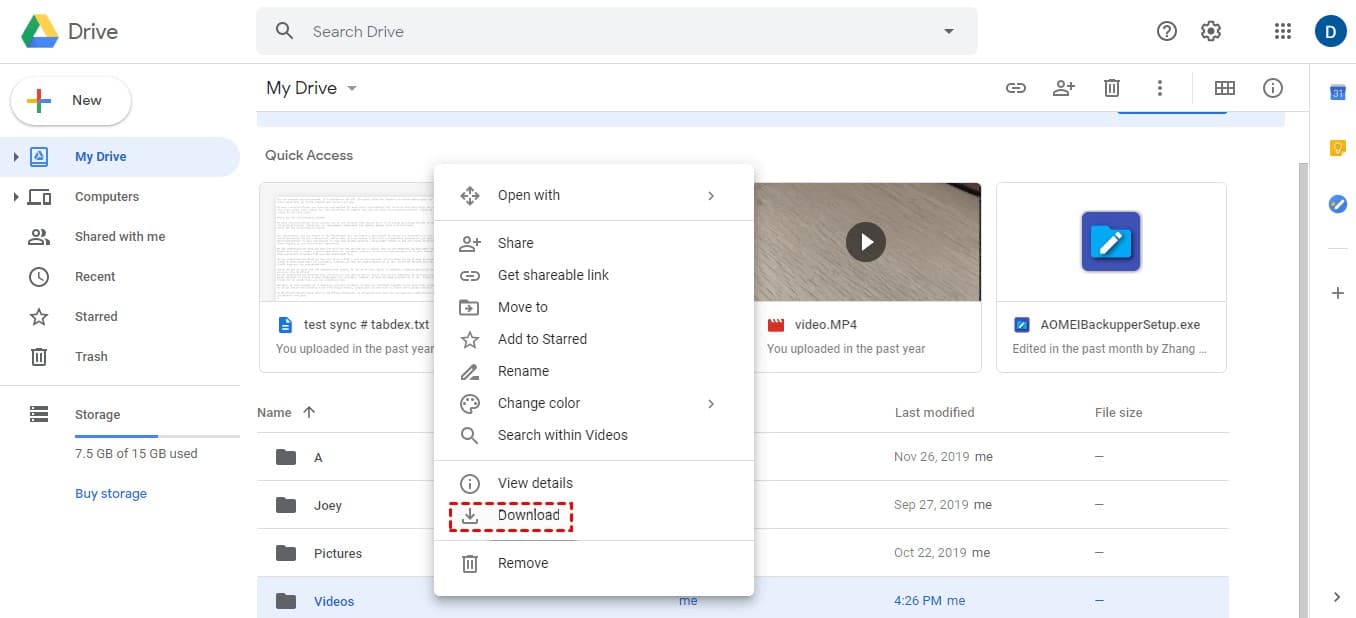
You first download files from your original Google Drive account to your local device, then upload them to your new Google Drive account. This approach works really well for moving a small set of files. You get full control over what gets moved and how the process goes, though it can eat up quite a bit of time.
Method 2. Export Files via Google Takeout and Import
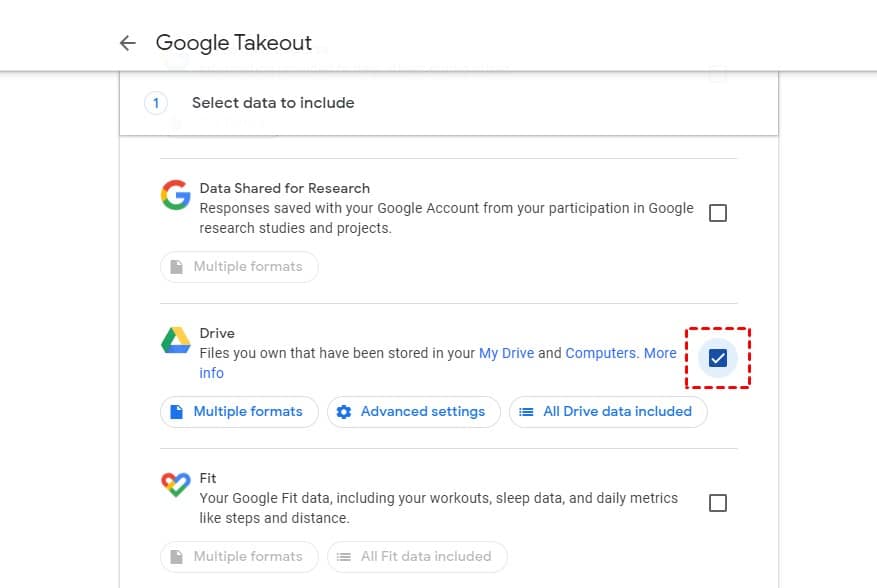
Sign in to Google Takeout with your old account and export your Google Drive data. Download the exported ZIP file, then manually import its contents into your new Google Drive account. Beyond Google Drive, this tool also lets you move your Google data over to iCloud, Dropbox, Box and other cloud services.
Method 3. Try Third-Party Multi-Cloud Management Services
Third‐party multi‐cloud management platforms like MultCloud let you link several different cloud storage services all in one place. You can manage, sync, back up and move files across these clouds, without having to download anything to your computer and re‐upload it. These tools use their own infrastructure and cloud APIs to carry out direct cloud‐to‐cloud file transfers. They tend to handle large‐scale data moves pretty well, as transfers generally run much faster.
Summary
Migrating Google Drive content to another account is about more than just moving files over. It’s also a good chance to tidy up your folder layout, get rid of files you no longer need, and focus on what actually matters inside your new account. Pick the method that fits your real‐world needs, so you don’t end up with your files scattered all over different places.


