
Microphones have become an essential part of everyday digital communication. Whether it is for joining an online meeting, recording a podcast, taking a virtual class, or using voice applications to communicate with friends, a working microphone is a must-have.
Few things can be as frustrating as discovering that your microphone is not working properly just a few moments before you need to make an important call or start recording. Luckily, testing the microphone online is a quick and easy procedure that can help you make sure that everything is working properly.
Online microphone testing tools allow users to check the input of sound, identify possible technical problems, and fix them before proceeding to use their device.
This step-by-step guide will walk you through the simple process of testing your microphone online so that you can communicate with confidence and clarity.
1. Check Your Hardware Connection
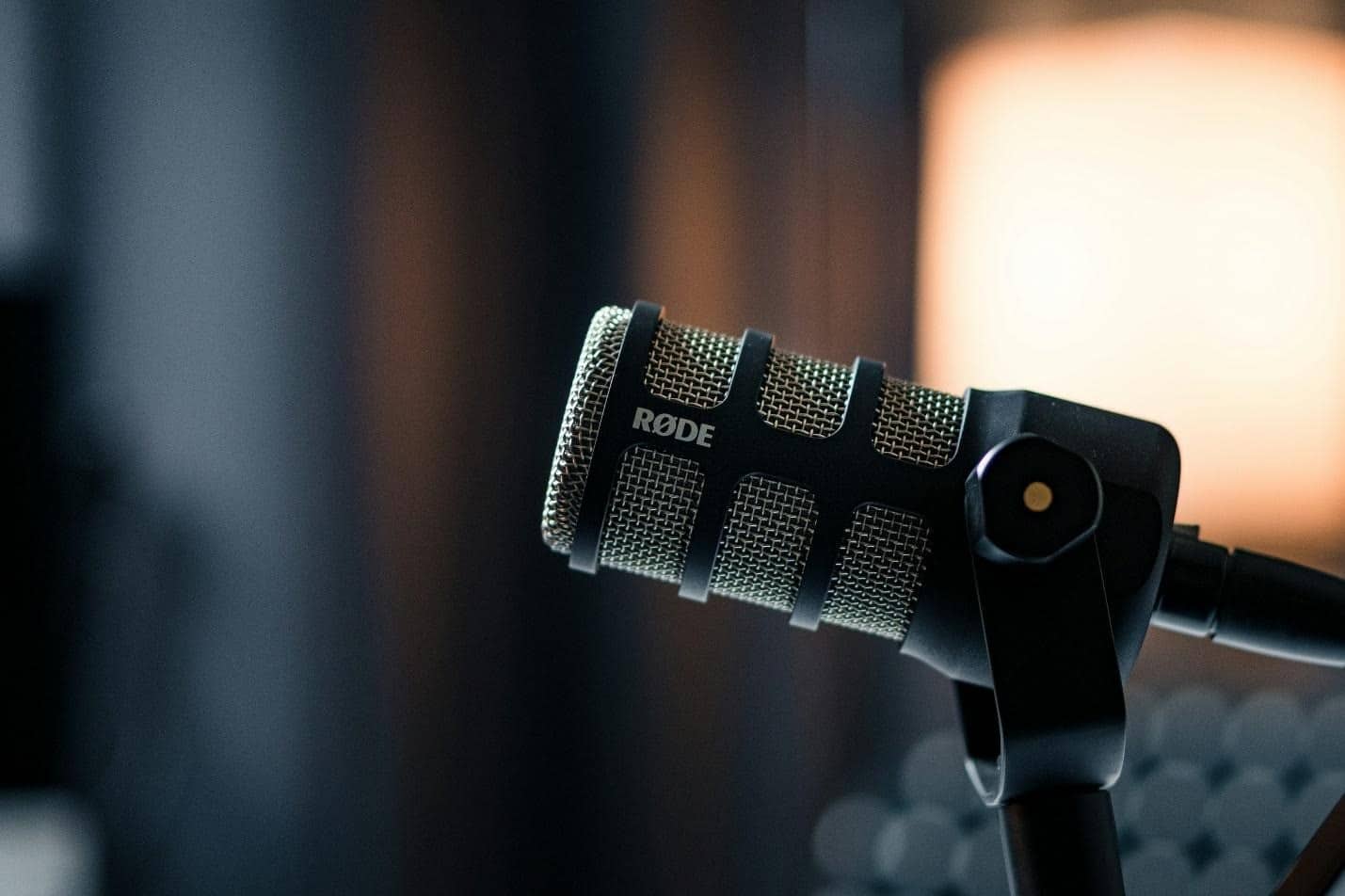
The first step to be considered when troubleshooting your microphone with the help of the various tools provided on the internet involves checking the connection of the hardware. There are many instances where a microphone does not work simply because of a loose or incorrect connection.
Therefore, before moving on to other troubleshooting steps, it is important to confirm that the microphone is properly connected. Once you have verified the connection, you can use the mic test online tool to check whether your device is detecting sound input.
If you are using a wired microphone, make sure the cable is securely plugged into the correct input port on your computer or audio interface. For USB microphones, confirm that the device is properly connected to a working USB port. Sometimes switching to another port can resolve detection problems.
2. Allow Microphone Permissions
Modern operating systems and web browsers include privacy settings that control which applications can access your microphone. If these permissions are not enabled, online testing tools will not be able to detect your microphone even if it is properly connected.
Start by checking your computer’s system settings to ensure microphone access is enabled. Most operating systems allow you to control microphone permissions through the privacy or security section of the settings menu. Make sure the browser you are using is allowed to access your microphone.
When you open an online microphone test tool, the browser will usually display a permission prompt asking whether the website can use your microphone. Be sure to click “Allow” when this prompt appears. If you accidentally block microphone access, you may need to manually adjust the browser settings to grant permission again.
3. Open an Online Microphone Test Tool

Once your hardware and permissions are confirmed, the following step is to open an online microphone testing tool. They are meant to analyze audio data in a matter of seconds and indicate if the microphone is working correctly or not.
That said, online microphone test tools are widely available and typically require no downloads or installations. For this reason, the testing will take as little time as possible, and it will also become easy. On opening the test page, the tool tries to find available audio input devices connected to your PC.
4. Select the Correct Microphone
If your computer consists of multiple audio input devices connected, it is important to select the correct microphone before beginning the test. Many laptops and computers have built-in microphones in addition to external microphones or headsets.
Online microphone testing tools usually provide a dropdown menu that lists all available audio input devices. From this list, choose the microphone you want to test. For example, if you are using a USB microphone or headset microphone, make sure it is selected instead of the computer’s internal microphone.
5. Start the Microphone Test
Having selected the correct microphone, you can then follow the testing procedure. For this, most online tools have a button with the words “start test,” “begin test,” or “check microphone.”
Pressing the button activates the microphone and sets the tool to the audio stream monitoring mode. As the test is running, the user is normally provided with an audio meter or waveform that shows a response to sound.
This visual indicator is either an audio meter or a waveform that responds to the reception of any sound. If the microphone is working properly, this meter should move whenever wires are detected.
Some testing tools also allow for the display of numerical levels or adjustment of input sensitivity.
6. Speak Into the Microphone
The final step in testing your microphone is to speak directly into it while observing the audio indicators on the testing tool. Speak clearly and at a standard volume to simulate how you would typically use the microphone during calls or recordings.
As you speak, watch the sound level meter or visual feedback on the testing page. If the microphone is working properly, the meter should respond immediately to your voice. Some tools also allow you to record and play back a short audio sample so you can evaluate the clarity and volume of your recording.
Wrapping Up
Testing your microphone online is a simple step, but an important one that saves time and nerves when getting in touch digitally. By checking your hardware connection and speaking some words into the microphone, there is a quick way to verify that all your audio equipment is set correctly.
These steps ensure that potential problems are found and corrections are made before essential calls or recording sessions start. Just a few minutes of preparation are all it takes to ensure that your microphone provides clear and reliable sound whenever you need it.

