
A drawn anime face can represent someone on Discord, Twitch, or a VTuber stream without showing the real one. The same character often turns up as a profile picture, a gaming icon, and later the lead of a short story or video. Drawing it by hand takes real skill, which is why an anime avatar maker works from a selfie or a few lines of text. The 6 tools compared here differ less in drawing style than in what each one does once the first image exists. The selfies these tools read are personal images, and research from MIT published in MIT Technology Review on protecting photos from AI manipulation has shown why that source material is worth thinking about before an upload.
Part 1. 6 Best Anime Avatar Maker Tools
Some tools convert selfies, some generate characters from prompts, and Picrew builds them from drawn parts. Go through the details of each option below and see which one fits your needs:
1. MagicLight AI
Typical use: an avatar that needs to move, speak, and return across a series of story videos.
Either a typed description or a photo can create an anime avatar on MagicLight AI. Its AI Avatar Generator offers photorealistic, 3D cartoon, and anime styles for that character. The builder sits behind Create Asset in the Asset Store. Each character gets a name plus a description of the hair, skin tone, face, and clothes. AI Expand fills in extra detail, such as eye color, when a short description leaves gaps.
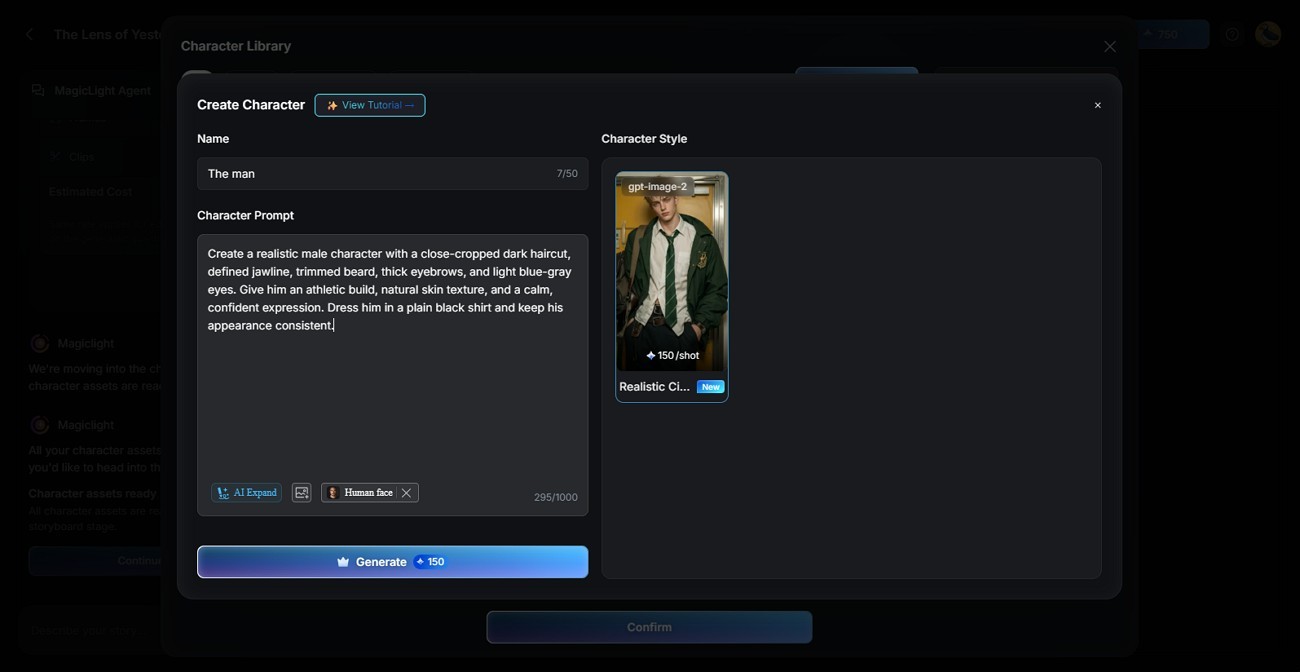
A preview step lets you regenerate until the look fits. That character then carries into video, where MagicLight Agent plans the story and Story to Video produces scenes in a studio animation style. Outside a story, Image to Video animates the still avatar, and Lip Sync pairs its mouth movement with a spoken line. Because the avatar can talk and move, the platform works as an AI anime character maker and not only a portrait tool.
Key Features
- Selfie conversion: For a profile picture based on a real face, Picture to Anime redraws the selfie in anime style and can then animate it.
- Image models: A prompt box feeds several selectable image models, and results vary between them.
- Reference uploads: When a face has to match an earlier portrait, several uploaded references guide it, and each run returns more than one version.
- Profile formats: A Discord or Instagram profile picture needs the square 1:1 frame, and 9:16 fits Stories and phone wallpapers.
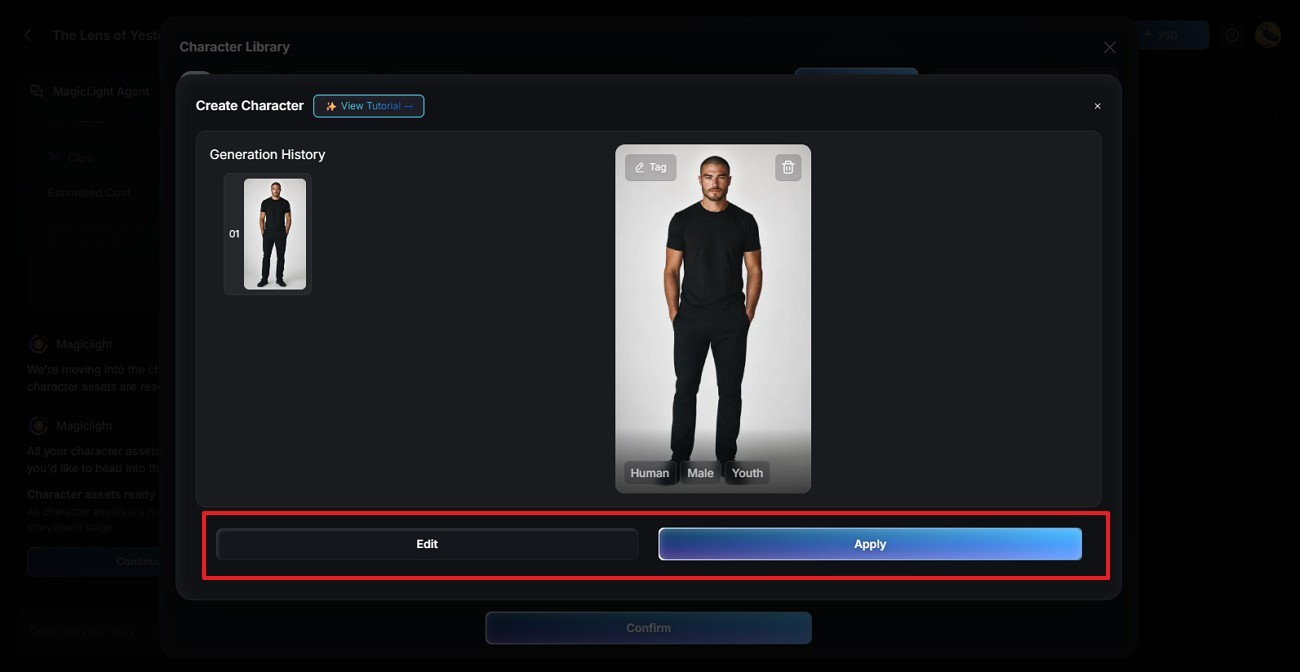
- Saved characters: Generate or upload a character reference, then apply the selected design as a reusable asset for future Story to Video projects.
Pros
- Photo conversion and prompt-based generation sit in the same account.
- Story videos can draw on a library of story models for added depth.
- Talking clips need no separate animation app, because lip sync gives the still avatar a spoken line.
Cons
- Video workflow centers on 1080p delivery, which may be short of a 4K brief.
2. Lensa
Typical use: a batch of anime portraits based on one real face, made on a phone.
Lensa combines portrait editing with its Magic Avatars feature. Trained on the uploaded selfies, this anime avatar maker creator returns a batch of portraits of one face, in styles that include anime and kawaii, and the batch size depends on the pack chosen. Users can save generated portraits to their devices and reuse them as profile pictures across supported platforms.
Key Features
- The same app retouches ordinary photos, adjusting skin, facial detail, lighting, and color.
- A single-photo mode accepts one selfie, though its results look rougher than those from a full upload set.
- Couple avatars place two people in one portrait, a fit for anniversary or wedding profile pictures.
Pros
- Portrait editing and avatar creation stay in one app.
- A single upload set covers styles from anime to sci-fi.
Cons
- Distorted hands and fingers still appear in some portraits.
- Lensa’s avatar-generation workflow primarily targets mobile users.
3. PixVerse AI
Typical use: turning finished anime avatars into short animated clips.
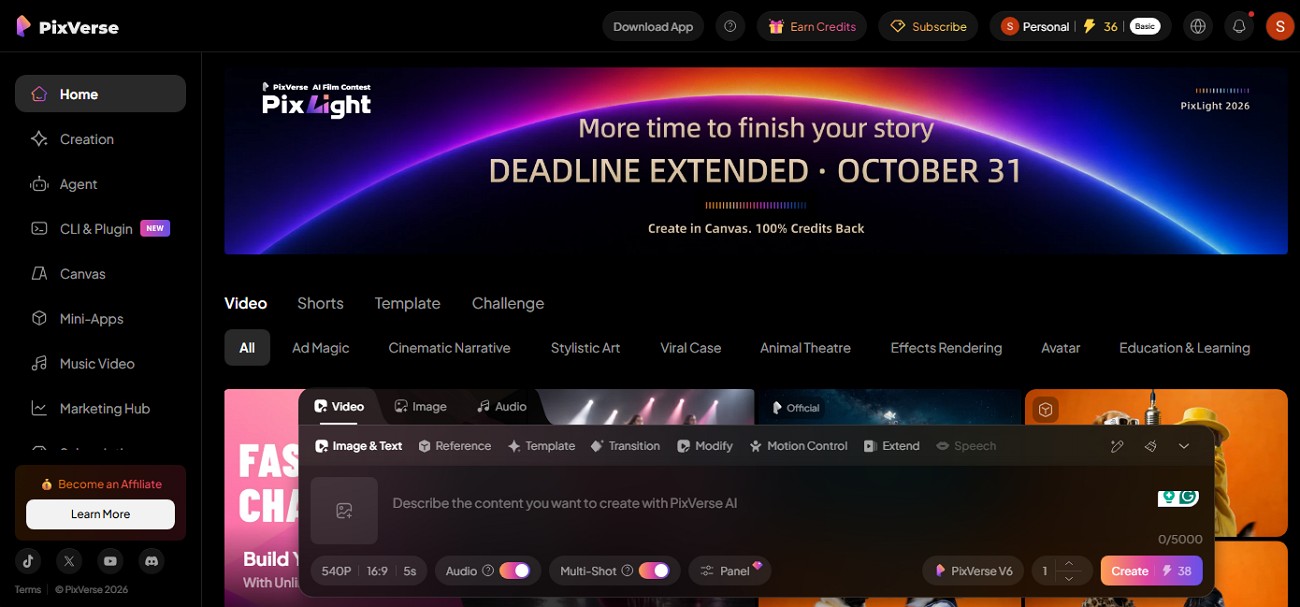
PixVerse AI can turn existing anime avatars into animated clips, acting as an anime avatar character maker for a portrait or design that needs motion. Its V6 model uses uploaded images as visual references, while prompts guide character movement, camera actions, scene changes, and audio. Each generation covers a short greeting or reaction rather than a full scene, which suits an opening sting more than a narrative.
Key Features
- Use character references in supported workflows to help preserve appearance across related video clips.
- Spoken lines get matching mouth movement through Lip Sync.
- A single V6 generation delivers the clip and its synchronized audio together, with no separate sound step.
Pros
- Image generation and animation happen in the same workspace.
- Canvas helps reduce character drift across multiple shots.
Cons
- Each generation produces one short clip, so scene-by-scene assembly is unavoidable.
- Longer anime stories still need several connected clips.
4. Picrew
Typical use: a hand-drawn anime avatar assembled from an artist’s parts, with no AI involved.
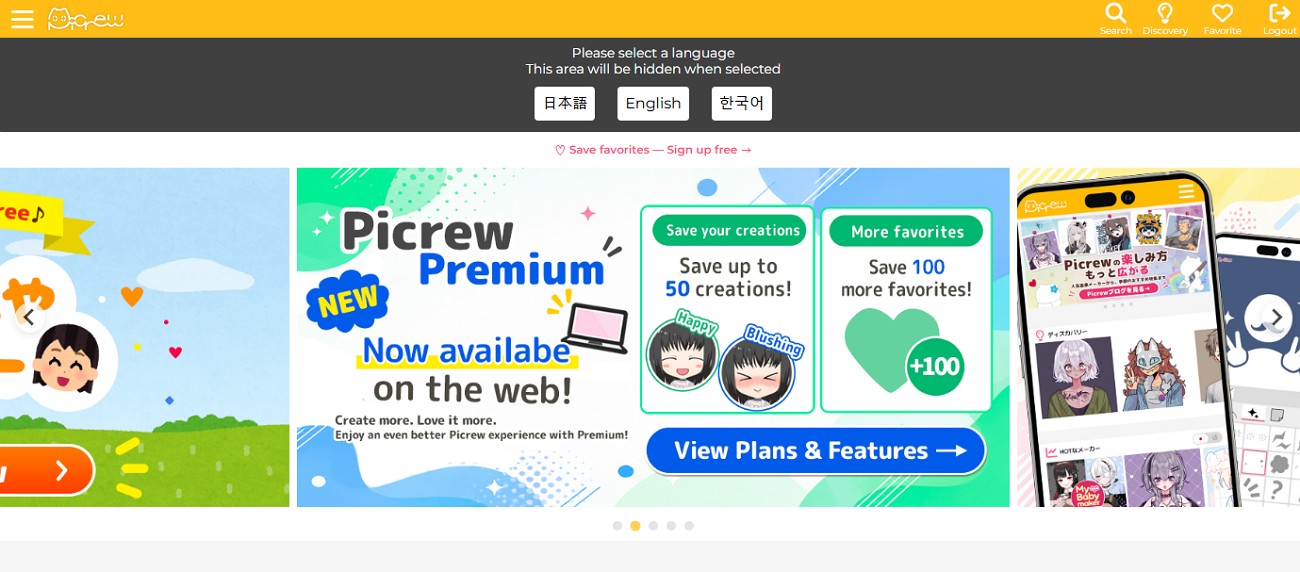
Picrew has no prompt box, no photo upload, and no AI model behind it. Each creator builds an image maker from separate illustrated parts, and users combine those pieces to create their own character. Assembling an avatar requires no registration, and the site works as a “free anime characters creator” for profile pictures.
Key Features
- Each artist caps their own maker with a fixed number of layers and items, so depth varies from one maker to the next.
- Finished avatars download in a square format or a taller vertical cut, depending on the maker.
- The site runs in both Japanese and English versions.
Pros
- Every image maker reflects one artist’s hand-drawn style and choices.
- Many makers work well for profile pictures and OCs.
Cons
- Art style and customization depend entirely on each creator.
- Commercial use is allowed only when the maker permits it.
5. Fotor
Typical use: turning selfies into anime profile pictures inside a general photo editor.
Fotor puts anime generation inside a general photo editor, acting as an anime avatar maker online for text prompts and uploaded selfies alike. With dozens of styles in the photo-to-anime tool, one selfie can come out cute, manga-inspired, or a fantasy character. Full-body characters are available too, which matters for a character sheet or a story lead shown head to toe.
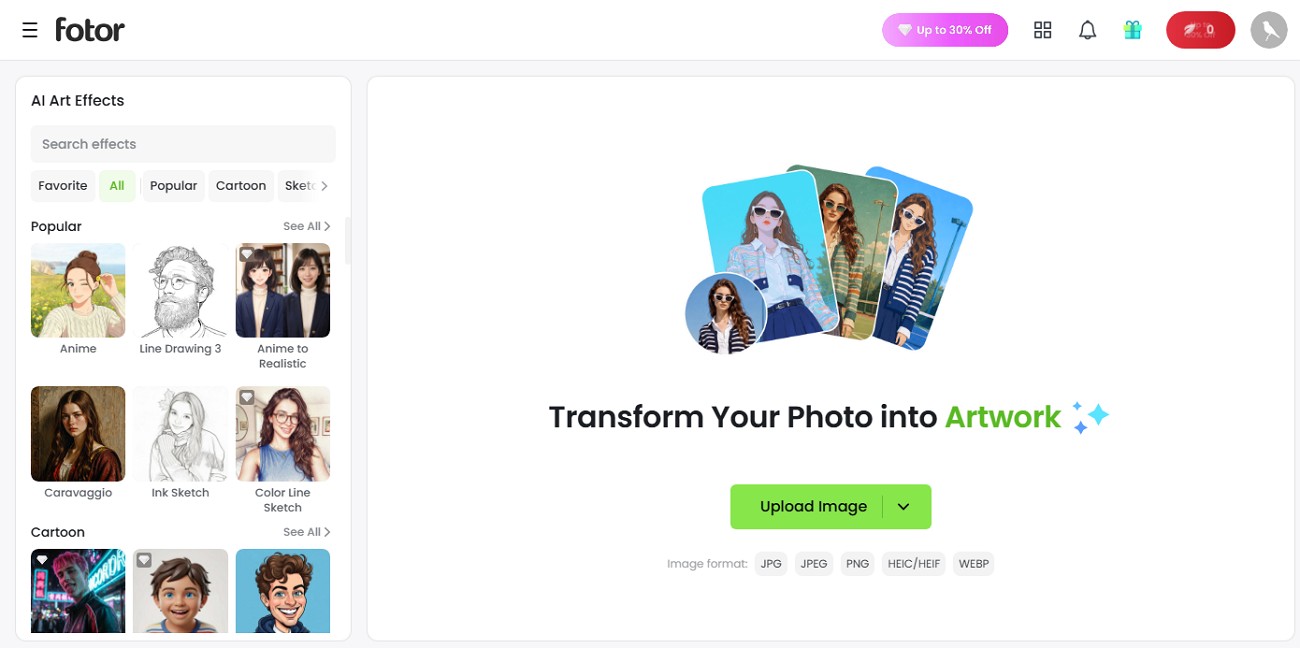
Key Features
- Supports 3D anime effects and full-body character generation.
- Apply different anime styles to uploaded photos to create multiple character looks.
- A mobile app brings the anime filters to phones.
Pros
- Fotor offers quick photo-to-anime conversion without requiring manual illustration.
- Background removal and replacement stay inside the same editor.
Cons
- Generative tools use credits, even when some filters do not.
- Detailed prompts are often needed for more specific results.
6. Leonardo AI
Typical use: tighter control over anime character details.
For detailed anime illustration, Leonardo AI offers Leonardo Anime XL, a high-speed model built for anime and manga artwork that covers a range of anime, illustrative, and CG styles. As an anime character generator online, it targets anime output specifically rather than general photography. Character Reference works from a single reference image and is intended to keep a subject’s likeness consistent across new poses, outfits, and scenes.
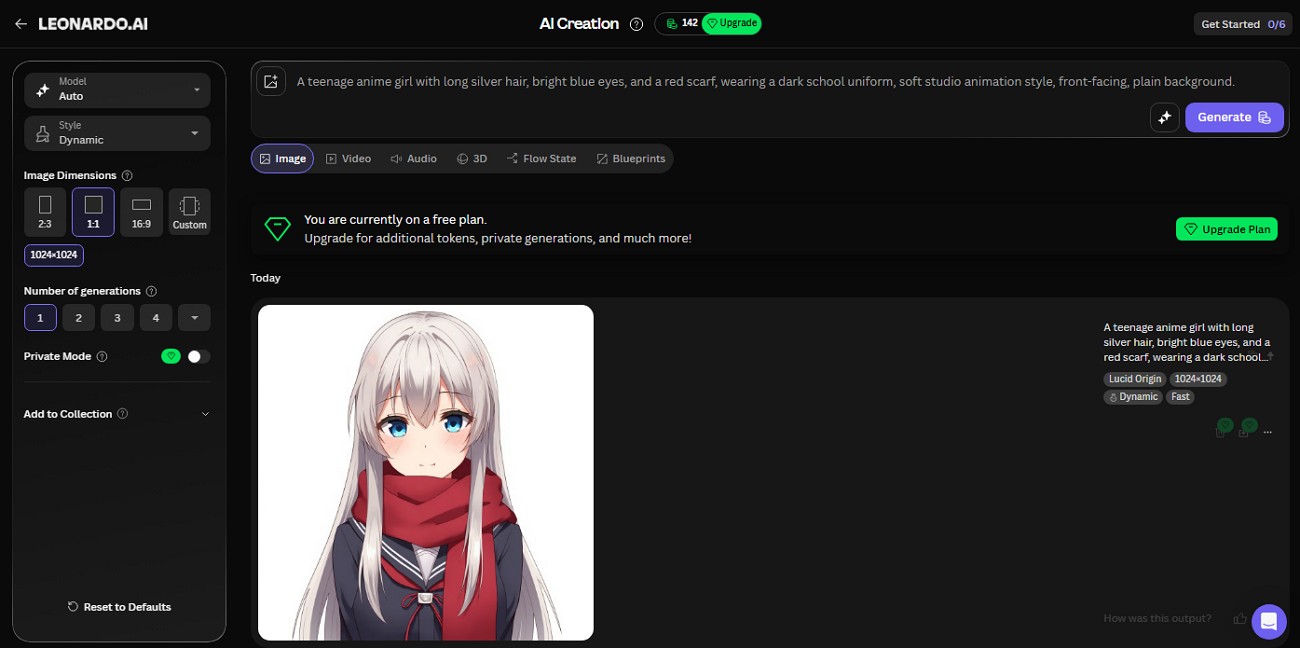
Key Features
- Sketch2Image turns rough drawings into polished character artwork.
- Custom Elements can learn specific characters and visual styles.
- Video tools animate stills through their own Motion model and third-party models such as Veo and Kling.
Pros
- Image editing and animation stay inside one platform.
- Sketch-to-image turns a rough drawing into a finished character.
Cons
- The mobile app lacks some advanced features found on the web.
- Custom Element training needs a curated set of at least 10 reference images.
Compare All Anime Avatar Makers
Where an avatar starts, and whether it must move, decides which anime character creator online tool fits a project, and one earlier comparison of social avatar editing tools looked at the same starting question from the photo-editing side. All six options are set out in the table below:
| Tool | Starting Input | Character Consistency | Animation |
| MagicLight AI | Text or photo | Saved characters | Talking clips, story videos |
| Lensa | Uploaded selfies | Trained on one face | None |
| PixVerse AI | Prompt or image | Canvas Character tool | V6 video with lip sync |
| Picrew | Artist-drawn parts | Consistent illustrated parts | None |
| Fotor | Text or selfie | Repeated references and style selection | None |
| Leonardo AI | Prompt, photo, or sketch | Character Reference | Motion and Veo clips |
Part 2. A Sample Workflow for Building an Animated Anime Avatar
The process of building a reusable, speakable anime avatar varies from tool to tool. The walkthrough below follows MagicLight AI as one worked example of the sequence, from asset creation to a first speaking clip.
Step-by-Step: From Character Asset to Talking Clip
Step 1. Open the Asset Store
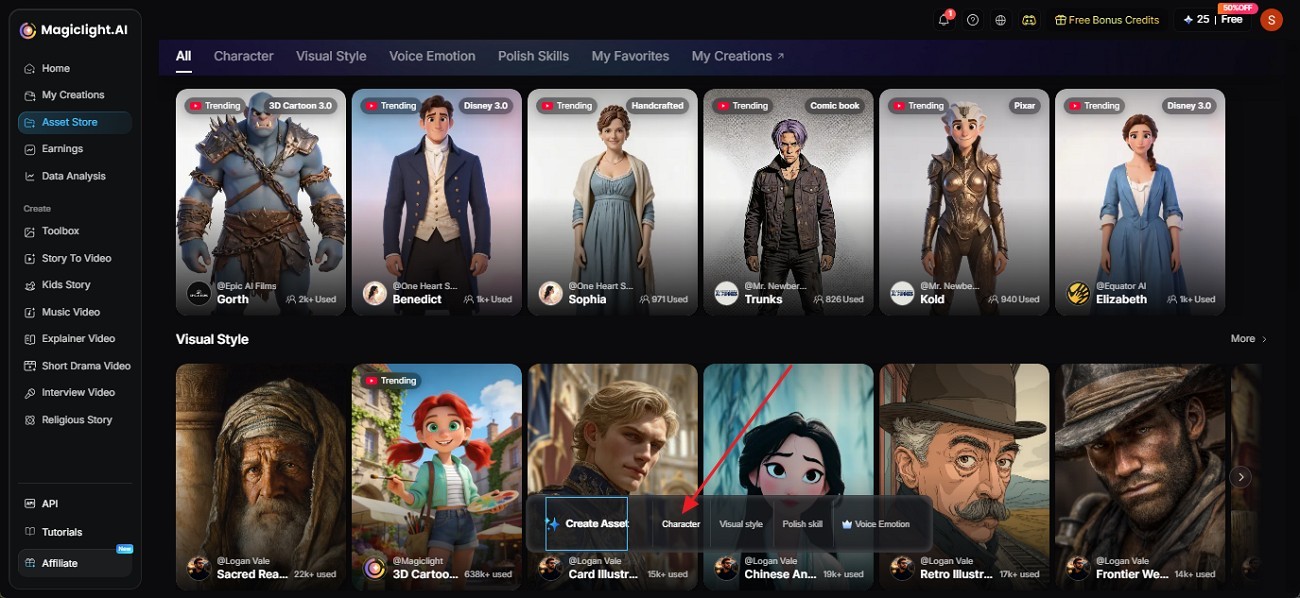
Log in to MagicLight AI and click Asset Store to choose the Create Asset button at the bottom of the page.

Step 2. Choose the Character Option
The Asset Store presents options such as Character, Visual style, Polish skill, and Voice Emotion. Choosing Character moves the workflow on to character design.
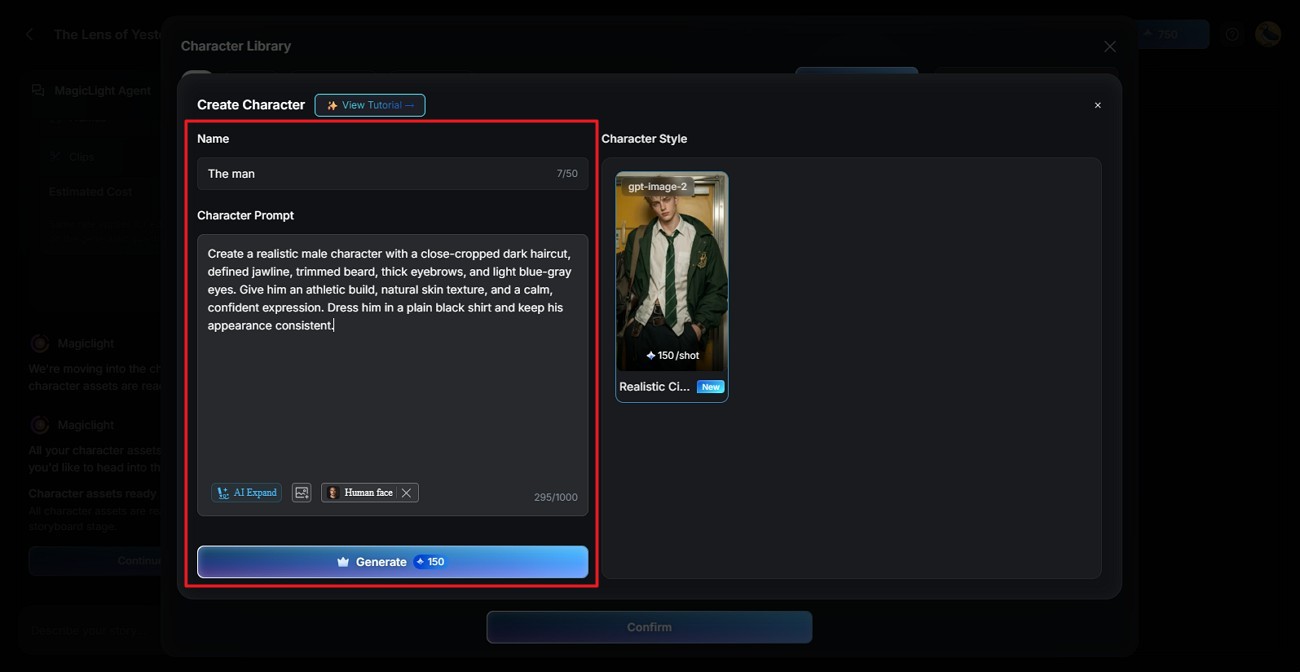
Step 3. Describe Your Anime Character
Type a name, then describe the hair, eyes, and outfit in the Character Prompt box, starting with the anime style. Click AI Expand to add detail, or upload a front-facing selfie. Choose a style model, check the cost per shot, and click Generate.
Step 4. Animate the Avatar
Review each version under Generation History, then click Edit to adjust it or Apply to keep it. Pick a voice, such as William, and preview it before you confirm. For motion, the applied avatar serves as the starting image in Image to Video, where Lip Sync reads a short line in that voice. The result is a talking clip of 30 seconds or less, long enough for a channel intro or a profile video.
Conclusion
Choosing an anime avatar maker depends on whether you start with a selfie, a prompt, or an existing design. Lensa and Fotor turn photos into anime portraits, while Picrew works from artist-drawn parts and Leonardo AI targets detailed character artwork. PixVerse AI specialises in animating stills, and MagicLight AI links reusable characters, lip sync, and story planning in a single project. Comic and manga creators have raised objections to how avatar apps use artistic styles and uploaded photographs, so the terms attached to any image used for a profile picture are worth reading before a batch is generated.
FAQs About Anime Avatar Makers
Is There a Free Anime Avatar Maker Online?
Picrew offers free avatar creation without registration, although commercial usage depends on each creator’s permission. Leonardo AI and MagicLight AI also provide limited free generation access for testing anime character designs.
Can AI Make an Anime Avatar From My Photo?
Yes. Tools like Lensa and Fotor can transform uploaded photos into anime-inspired portraits. Results vary depending on image quality, facial features, and the selected style, and the consent attached to the original photo does not travel with the derived image.
How Do I Keep My Character Consistent?
Reuse the same reference image and core description across generations. Leonardo AI’s Character Reference and PixVerse’s Canvas Character tool both work from references to carry facial features, hairstyles, and clothing between images.
Can I Animate an Anime Avatar?
Yes. Image-to-video tools can add movement, facial expressions, and speech to a static anime avatar. MagicLight AI is one option for animating a portrait or incorporating a character into a multi-scene video.

